Posts

Showing posts with the label Script

Run remediation on-demand on Windows Client using Microsoft Intune

Image
In this new article, we will focus on an option that has been available in Preview for a few months now, it is Remediation on-demand The proactive remediations is scripts package available in the Microsoft Intune administration console. They detect and resolve common support issues on a user's device before they even realize there is a problem. We will see below what the necessary prerequisites are and how to use this new functionality. Prerequisites Whether enrolling devices via Intune or Configuration Manager, Remediation scripting has the following requirements: Devices must be Microsoft Entra joined or Microsoft Entra hybrid joined and meet one of the following conditions: Is managed by Intune and runs an Enterprise, Professional, or Education edition of Windows 10 or later. A co-managed device running Windows 10, version 1903 or later. Co-managed devices on preceding versions of Windows 10 will need the Client apps workload pointed to Intune (only applicable up to version 1607...

Rename devices with PowerShell and Microsoft Intune

Image
Renaming a device manually is quick and easy when we only have one device to fix. But when it comes to doing a large number of devices, then it is better to automate this action. Today, there is the method via CSP but which can have a rather random behavior, in particular on the reporting, console side. I therefore share with you a PowerShell script which, deployed with Microsoft Intune, will allow you to quickly rename your machines. Script overview This script detects the type of device used:  If it's a virtual machine , it takes the defined prefix  (CCMT in my example)  and adds a numeric complement generated with Get-Random command For physical machines , it retrieves the serial number and adds the prefix  (CCMT in my example) The user is informed that his device has received changes and that it will restart automatically in a few minutes. The script is available on Github :  Link Script integration & deployment Prerequisites The prerequisites are: Conve...

Windows 11 security check with Powershell

Image
Presentation This script provides an overview of the status of the various security components integrated into Windows 10 and 11. Github link : https://github.com/ChrisMogis/Win11_Security_Check When running the script, we check for the following: Windows Defender Windows Firewall Secure Boot Bitlocker Windows Updates Windows Hypervisor Credential Guard Device Guard App Guard As well as the status of the following protocols : SMB v1 TLS1.2 SSL 2.0 SSL3.0 PCT 1.0 WDigest LLMNR HVCI Execution Command line :  powershell.exe -executionpolicy ByPass -file .\W11_Security_Check.ps1 Other information The script will evolve in the coming weeks and integrate the remediation part.

How to create a virtual machine on Hyper-V with PowerShell

Image
 Presentation When we want to set up a lab, we are forced to multiply the clicks to create our environment. To make my task easier, I created a script with two virtual machine templates. Github link :   https://github.com/ChrisMogis/Create_VM_HyperV.ps1.git  The first model proposes: 2 vCPU 2Gb  of memory 60Gb  hard drive The second model proposes :  4 vCPU 4Gb  of memory 80Gb  fard drive Prerequisites CPU compatible with virtualization instructions Virtualization activated in UEFI Windows 10/11 Pro or Enterprise license Hyper-V is available on your computer How to install Hyper-V :  https://www.ccmtune.fr/2022/08/how-to-install-hyper-v-feature-on.html Variables avalables in the Script VM naming Two variables used for create the name of vitrual machine $VMNumber  =  Get Random $VMName  =  "CCMT" + $VMNumber Virtual Switch This variable is used to name the virtual switch that will be created when you run the script.  (...

User Assistant - Tool for End User

Image
Presentation This tool aims to gather and provide the end user with options to perform simple actions without having to search everywhere in Windows. Github link :   https://github.com/ChrisMogis/EndUser_assistant.ps1/blob/main/EndUser_Assistant.ps1 Options available List of actions : Computer information (Device Name, IP, @Mac, OS) Run remote control (msra) Data backup Internet connection test Clear cache DNS Reset network connection Restart SCCM service (Only if the Intune service is available on your computer) Restart Intune Service (Only if the Intune service is available on your computer) Quick scan with Windows Defender Full Scan with Windows Defender Logs All actions are logged to C:\Tools_CCMTune\Logs Convert to EXE For converting this script to exe file, I recommend that you use the tool made available by Damien Van Robaeys Github Link :  https://github.com/damienvanrobaeys/PS1-To-EXE-Generator/tree/master/New_Version/Sources Website Link :  https://www.syst...

Manage Calendar Permissions on Office 365 with PowerShell

Image
This script is used to manage rights on users' calendars on Office 365 with Powershell. Github link :  Download Script Script exécution This script has three options for reading or changing rights on a user's calendar.  Command line : O365-ManageCalendarPermissions.ps1 -Choose Info Displays calendars and rights associated with the user's default calendar O365-ManageCalendarPermissions.ps1 -Choose Add Adds rights to a user in the organization on another user's calendar O365-ManageCalendarPermissions.ps1 -Choose Remove Remove rights to a user in the organization on another user's calendar Calendar permissions Exemple Add calendar permission 1. .\O365-ManageCalendarPermissions.ps1 -choose add 2. Enter your admin account information 3.  Enter verification code 4. Enter the name of the account to which you want to delegate a right 5. Enter the account name of the user to whom you want to assign rights 6. Specify permission type Result

Send email alert if Reboot or shutdown a Server with Powershell

Image
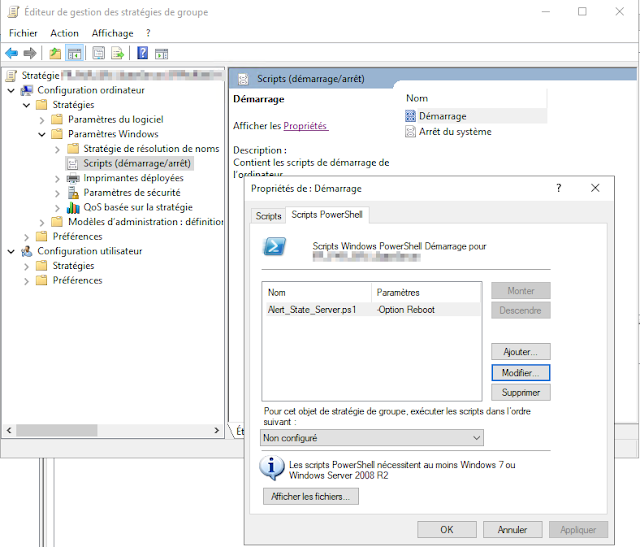
Présentation This script allows to send a status mail when a server restarts or stops. All actions are logged to C:\Logs. Github Link :  https://github.com/ChrisMogis/Scripts/blob/main/Alert_State_Server.ps1 Exécution command line for reboot status :  powershell.exe -executionpolicy ByPass -file .\ScriptName.ps1 -Option Reboot Exécution command line for shutdown status :  powershell.exe -executionpolicy ByPass -file .\ScriptName.ps1 -Option Shutdown #Script Parameters Param ( [Parameter(Mandatory= $true )] [ValidateSet( "Reboot" , "Shutdown" )] [String[]] $Option ) #Function create Log folder     Function CreateLogsFolder {     If (!( Test-Path C:\Logs))     {     New-Item -Force -Path "C:\Logs\" -ItemType Directory } else {     Write-Host "The folder " C:\Logs\ " already exists !"     } } #Create Log Folder     CreateLogsFolder #Declaration of script variables     ...

Monitor a server hard drives with Powershell

Image
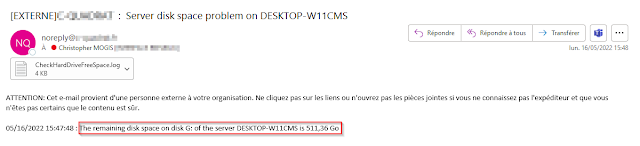
Monitor a server hard drives with Powershell Script  This script is used to monitor the disk space of a server and to send an alert email when the remaining disk space reaches the limit set by the administrator. Github Link :  https://github.com/ChrisMogis/MonitoringFreeHardDriveSpace/blob/main/FreeSpaceHardDrive.ps1  #Function create Log folder     Function CreateLogsFolder {     If (!( Test-Path C:\Logs))     {     New-Item -Force -Path "C:\Logs\" -ItemType Directory } else {     Write-Host "The folder " C:\Logs\ " already exists !"     } } #Create Log Folder     CreateLogsFolder #Declaration of script variables $Client = "Client Name" $ListDisk = Get-CimInstance -Class Win32_LogicalDisk | where { $_ .DriveType -eq "3" } $Server = (Get-CimInstance -ClassName Win32_ComputerSystem).Name $SetMinSizeLimit = 50 GB; $LogPath = "C:\Logs\CheckHardDriveFreeSpace.log" $Date = Get-Date #Scan...